
 Print
Print
|
|
|
|



Enabling/ Disabling Defect Writing
From System Overview mode, you can enable or disable Defect Recording (images) and the Defect Database (data) for all lanes.
Note: this feature is available in software versions 5.0.493, 5.2.026, 5.3.005 and later.
First time usage
If this is the first time you are using this feature, you must prepare the hard drive once from Lane Overview mode. If you select Defect Writing > Configure Defect Writing from the Tools menu in System Overview mode without first preparing the hard drive, the following message will be displayed.
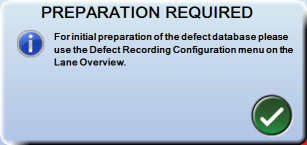
Go to Preparing the Database for information on setting up the hard drive to configure your defect database.
Note: once the hard drive is prepared initially, you do not need to prepare it again for additional lanes, except if you add a lane subsequent to preparing the database the first time. If you have added a lane, then you will need to prepare the database through Lane Overview mode on the new lane.
Subsequent usage
If you have previously used the Defect Database and disabled it from any or all lanes, you can enable it for multiple lanes at once. No further hard drive preparation is required after initial setup.
To enable the Defect Database on any lane:
- From System Overview
 mode, select Tools
  > Defect Writing > Configure Defect Writing.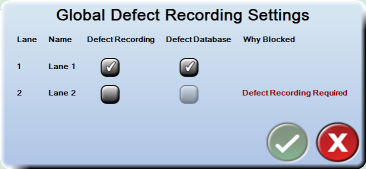
- To enable Defect Recording (the recording of images), check the Defect Recording box.
- Check the Defect Database box to enable recording of non-image sensor data. The database is enabled for the selected lane(s).
- Click the OK button to save changes and exit.
The system is ready to record defect images and data as you selected.
Print
|
Published: 11/12/2015 11:36:17 AM ©2015 ACME Ltd. All rights reserved. |
 |